Export your LIVE data and create an API key
By
- toktokdata.live team · Data teamThe people who read the boards, run the crawlers and write the methodology.
Published
Reading time
2 min read
Your data, outside the dashboard
Two ways to take the numbers elsewhere: Exports give you a file of your recorded LIVE sessions in a few clicks, and an API key lets your own scripts, spreadsheets or BI tools read the same data whenever they need it.
The video creates an export and an API key on the real dashboard with demo data. The key in the recording is blurred: a real key is a secret.
Step by step
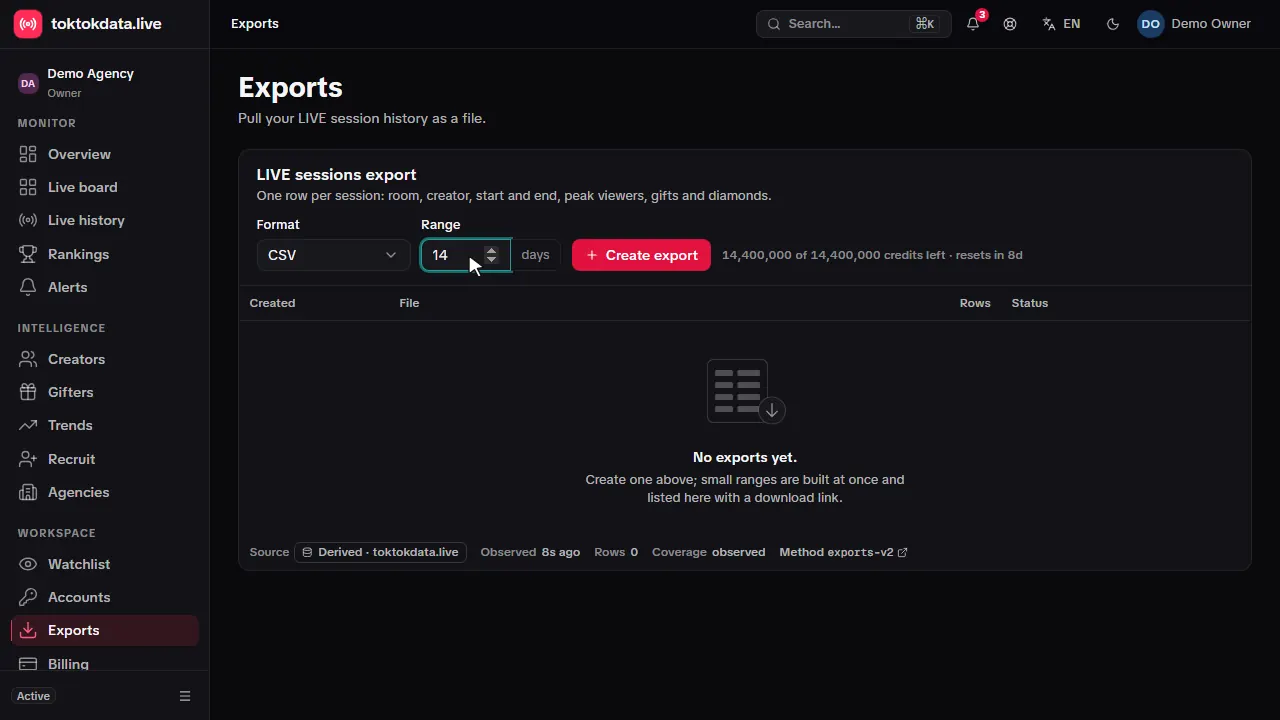
1On Exports, choose the format and how many days to include.
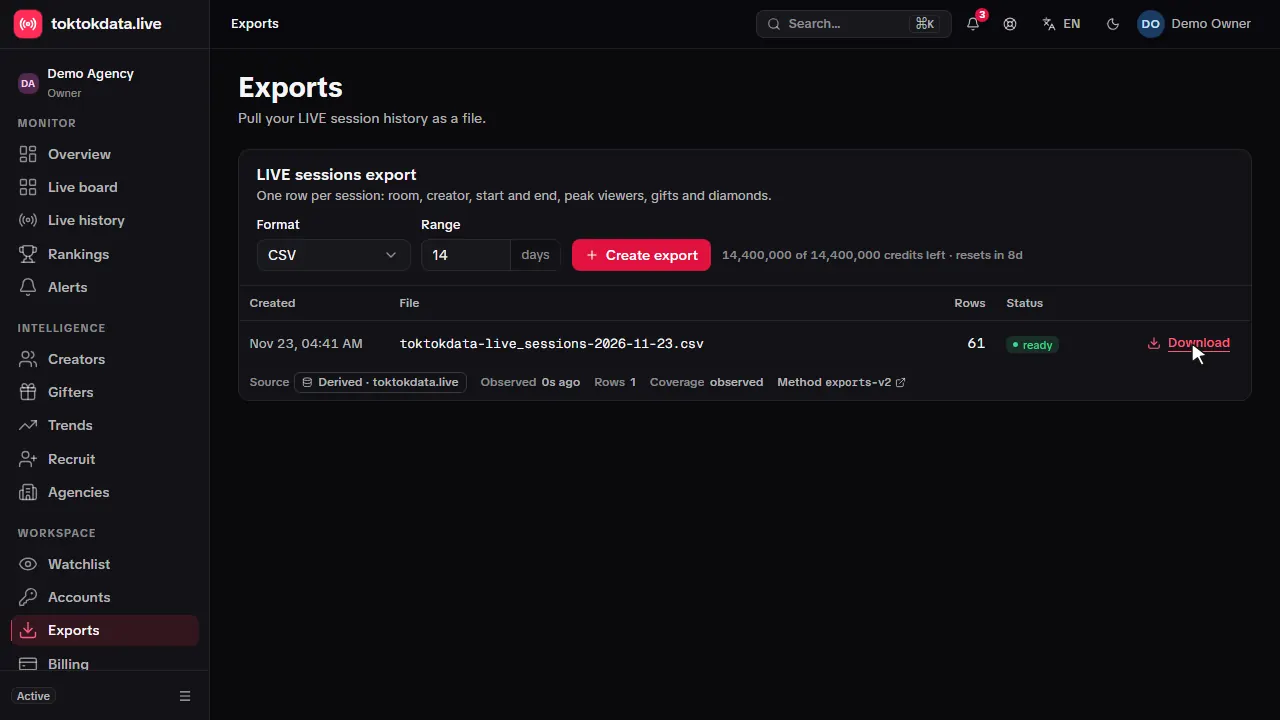
2Press Create export: small ranges are ready at once with a download link.
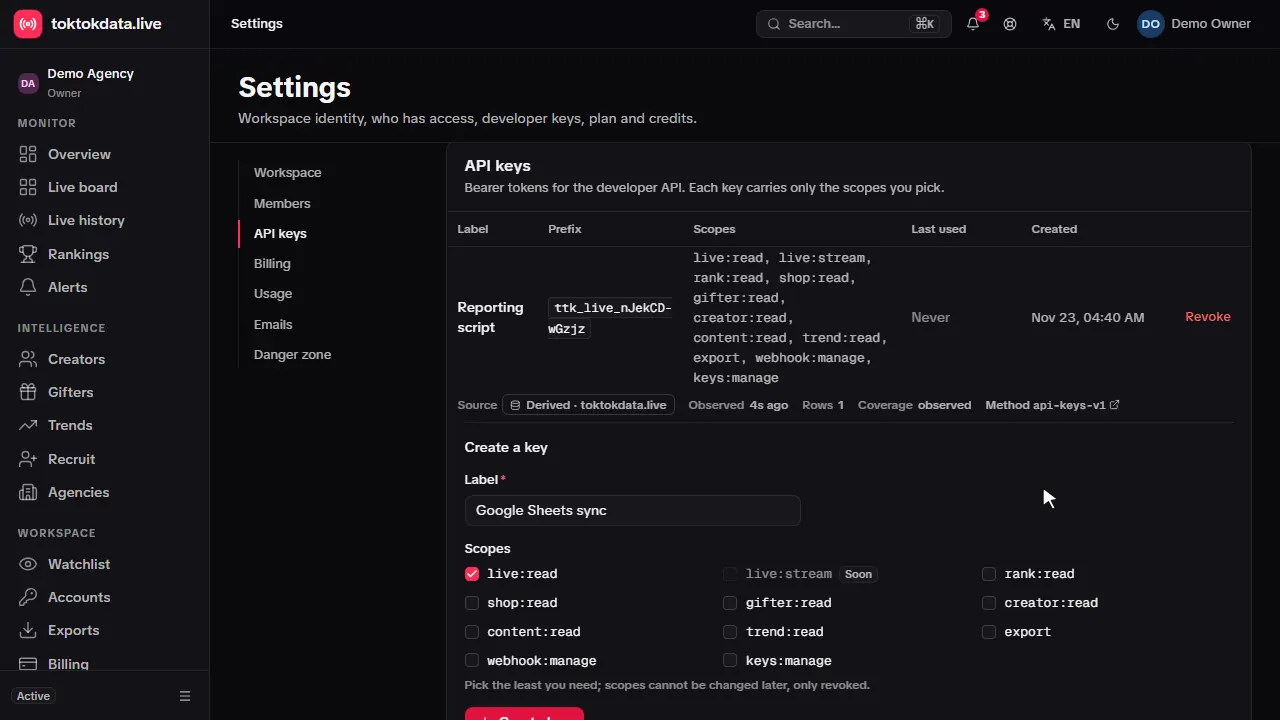
3In Settings → API keys, name the key and tick only the scopes it needs.
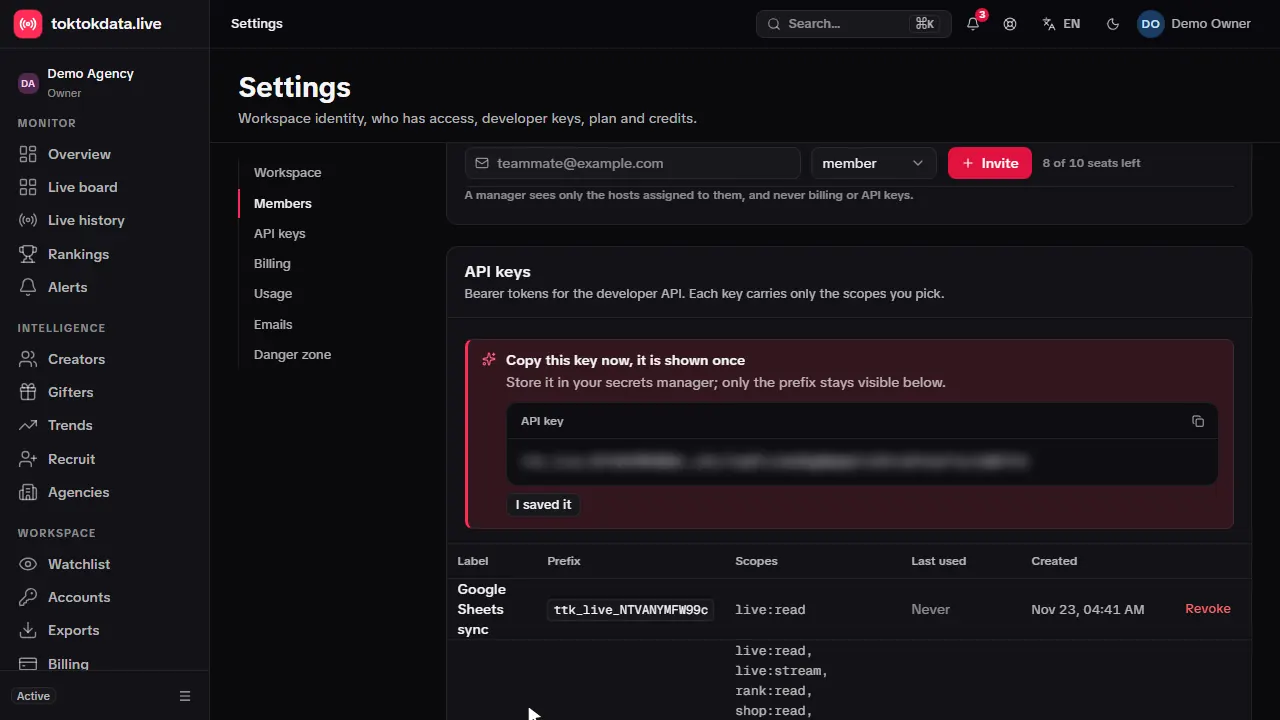
4Press Create key and copy it right away: it is shown only once.
Exports
The LIVE sessions export has one row per recorded session: room, creator, start and end, peak viewers, gifts and diamonds. Pick CSV or, on the plans that include it, Excel, and the number of days. Small ranges are built at once; larger ones appear in the list when ready, with a download link.
Exports use credits from your monthly allowance (the counter next to the button shows what is left) and start on the paid plans; see the pricing page. Most pages also have an Export button for the view you are looking at, for example a creator's LIVE page or the gifter list.
API keys
Owners create keys in Settings → API keys. Give each key a label that says where it is used, and tick only the scopes it needs: for example `rank:read` for a ranking sheet, `live:read` for session data, `gifter:read` for gifters. Scopes cannot be changed later; create a new key and revoke the old one instead.
The full key is shown once, when you create it. Store it in your password manager or your tool's secret settings, never in a shared document. The table keeps the prefix, the scopes and when the key was last used, and Revoke stops a key immediately. Each call uses credits; Usage in Settings shows them.
- Settings → API keys → type a label
- Tick the scopes, then Create key
- Copy the key and send it as a Bearer token
- Revoke it when you no longer need it
Next steps with the API
Start with getting started with the API and authentication, then read about credits and rate limits. To push alerts into your own system instead of pulling data, use a webhook channel: set up alerts by Telegram, email and webhook.
Questions
Frequently asked questions
I lost my API key. Can I see it again?
No. Keys are shown only once. Revoke the lost key and create a new one.
How many keys can I create?
It depends on the plan; the pricing page lists the limit. Use one key per tool so you can revoke one without breaking the others.
Do exports include data from before I added a creator?
No. Exports contain the LIVE sessions we recorded, which start when the creator is tracked, within your plan's history window.